Choose or drag
Use Home or drag a file in Finder and hold Shift, Command or Control to open the matching wheel.
 Filevero
Drag a file. Tap a key. Make it yours. Convert, crop and fine-tune without breaking your flow.
Your files stay yours. Local processing. No subscription.
Download the Mac (Apple Silicon), Windows (x64) and Linux (x64, arm64) builds from GitHub Releases, or build from source on GitHub. After opening it, choose Finish setup → Download missing tools once for verified media and Office runtime downloads. Core native image and PDF features work immediately.
Open the Mac disk image and drag Filevero onto Applications. Mac downloads are not notarized by Apple yet: after the first launch, choose Open Anyway in System Settings → Privacy & Security. Windows builds are not Authenticode signed yet, so SmartScreen may ask you to confirm. On Linux, make the AppImage executable and open it; nothing is installed system-wide and no administrator password is needed.
Use Home or drag a file in Finder and hold Shift, Command or Control to open the matching wheel.
Choose a format or tool. Preview edits and use keyboard controls for precise adjustments.
Watch real progress and save a new output. A short, borderless success card shows when it is ready.
One-click subject lifting that stays on your computer: Apple Vision on Mac, the open ISNet model on Windows and Linux. Instant transparent PNG export.
One-tap exact ratios and pixel sizes for Instagram, YouTube, X, LinkedIn and web banners.
Drag any file straight onto the status bar icon to immediately reveal the radial conversion wheel.
Direct decoding and conversion for DNG, CR2, CR3, NEF, ARW, RW2 and ORF raw camera formats.
Native AppIntents integration to convert, strip background, and compress files in Shortcuts.
Turn it on in Settings, then press Control–Command–V (Windows: Ctrl+Shift+Alt+V) to search, pin and paste what you copied. Password managers and the apps you exclude are skipped. ⌘T (Ctrl+T) changes text case, formats JSON, makes a QR code or saves a copied image.
Pick a folder and a saved workflow: every new file that lands there is converted, fitted, compressed or cleaned into the folder’s Filevero subfolder.
One click makes a copy without location or other metadata, turns HEIC and RAW photos into JPG and fits large images within 2048 px.
The shared Mac, Windows and Linux tool catalog. Native platform details are listed below.
Image, video, audio and PDF compression. Choose quality, reduction percentage or target size where supported. An unreachable target returns an explanation rather than silently losing features.
Inspect, edit or remove supported image, PDF and media metadata, including track and chapter fields. Export a new copy.
One click makes a copy that is safe and light to send: location and other metadata removed, HEIC and RAW photos turned into JPG, large images fitted within 2048 px.
Resize, rotate, flip and tune brightness, contrast and saturation, with an original/result preview.
Independent freehand/marker and shape tools, text, arrows and Select / Move. Choose one drawing tool at a time.
Create a polished image frame with configurable padding, background, corners and shadow.
Drag to select, move or resize the crop. Hold Shift to lock its ratio; Return exports a cropped copy.
Automatically isolate the main subject and save a transparent PNG, on-device: Apple Vision on Mac, the open ISNet model with ONNX Runtime on Windows and Linux.
Analyze loudness, then export with integrated-loudness, loudness-range and true-peak targets.
Create a silent video copy while keeping the video stream.
Preview, drag In/Out handles, move the selection and export its range. Keyboard playback, seeking and I/O marks help refine cuts.
Split selected pages into individual files or groups. Specify page ranges and pages per file.
Reorder, remove and rotate pages. Optional uniform-width output is limited when document features cannot be safely preserved.
Extract ZIP, TAR, GZIP and RAR into a new folder. Path and link validation keeps entries inside that folder.
Combine selected images into a new PDF in the chosen order.
Combine several PDFs while preserving supported page content and navigation. Originals remain unchanged.
Select a region directly on the video preview. Drag, resize, use Shift ratio lock and Return to export.
Change video speed with matching audio tempo and preview controls.
Join multiple clips in order, adapting geometry, frame rate and audio layout to a consistent output.
Choose timestamps and save still frames as new PNG files.
Split at markers, equal clip counts or intervals. Remove unwanted segments; save separately or join retained clips.
Create a waveform, spectrum, frequency-bar or still-image video from an audio file.
Waveform preview, In/Out handles and selected-range playback. Optional silence trimming and keyboard seeking.
Convert mono/stereo and set left/right levels, with channel previews.
Arrange several images in a configurable layout with gaps and background styling.
Select areas and export with solid, blur or pixelation treatments. Always verify the resulting file before sharing.
Define rectangular regions and time ranges for solid, blur or pixelated redaction.
Choose intervals to replace with a bleep or silence; preserve the rest of the audio.
Scan supported images and PDF pages, review detected contents and export a report.
PNG, JPG, BMP, GIF and TIFF conversion, with PDF export. Resize, crop, rotate, horizontal flip, independent marker/rectangle annotation, JPEG compression and metadata removal. GIF import uses its first frame.
Video/audio conversion plus 15 tools: compression, metadata removal, loudness normalization, mute, video trim/crop/speed/join/snapshots/split/redaction, audio visualization, audio trim/channels/bleep. Export uses verified FFmpeg; native playback depends on Windows codecs.
Merge PDFs, split pages and reorder selected page numbers. Create ZIPs from files and extract ZIPs with traversal/link checks, entry limits and expansion limits. Existing names are kept.
Mac-style Home and searchable Library, with System/Light/Dark appearance. Drop files or paste text, images and files with Ctrl+V. Ctrl+O chooses files; Ctrl+Space opens tools; Ctrl+2 opens Library; Ctrl+F searches. Clipboard imports and Library survive app updates. Optional clipboard history opens with Ctrl+Shift+Alt+V; Ctrl+T shows actions for an item. Saved workflows and watched folders work as on the Mac. Space plays/pauses; Left/Right seek 1 second; I/O set a media range. Crop uses drag, Shift ratio lock and Enter. Escape closes the editor. Public-link video/audio/thumbnail downloads and signed public updates are included.
The Windows parity build adds Explorer drag wheels, Float, folder automation, Office/Pages conversion, QR reading, background removal and eight window layouts, including Maximize. AirDrop is replaced by Windows Share; system permissions, codecs and native dialogs follow each OS.
The AppImage runs on Ubuntu 22.04/24.04/26.04, Debian 13, Fedora 43/44 and other glibc 2.35+ distributions. It checks the Ed25519 signature of each update before replacing itself. A .tar.gz is there for systems without FUSE.
Home, Library, every editor, Float, drag wheels, saved workflows, watched folders and clipboard history, with the same Ctrl shortcuts as Windows. Text recognition (Turkish and English) comes inside the AppImage.
Settings → Desktop adds the Applications menu, Open With, login launch and “Open in Filevero” in Files, Dolphin and Nemo. On Wayland, the optional GNOME extension or KDE Plasma’s permissions add drag wheels everywhere and background clipboard history; X11 sessions have them directly.
Paste a public video share link or direct media address. Choose video, MP3 or the original image/media, quality and destination. YouTube cards can offer video and thumbnail separately; Instagram reel cards need an actual reel link.
Use Control–Shift–D for a copied link, drag a browser card with Command, or drop it onto Home. Some players only expose a poster or blob address; Copy Share Link is the fallback. Supported sites change. Instagram photo posts open a photo picker; selected photos are saved in post order. Reels offer video and audio without a thumbnail action. DRM, live streams, login-required media, profile-wide downloads and video playlists are not supported.
This table is generated from the app catalog. A format appearing here does not mean every advanced document feature can be retained. PDF to DOCX/XLSX reconstruction is heuristic; PDF to PPTX uses page images.
| Input | Available outputs |
|---|---|
| 7Z | ZIP, TAR, GZ, BZ2, XZ |
| AAC | MP3, M4A, WAV, FLAC, OGG, OPUS, AIFF, WMA |
| AIFF | MP3, M4A, WAV, FLAC, OGG, OPUS, WMA |
| ARW | JPG, PNG, WEBP, HEIC, TIFF, AVIF, PDF |
| AVI | MP4, MOV, MKV, WEBM, WMV, GIF, MP3 |
| AVIF | JPG, PNG, WEBP, HEIC, TIFF, BMP, PDF |
| BMP | JPG, PNG, WEBP, HEIC, TIFF, AVIF, PDF |
| BZ2 | ZIP, TAR, GZ, XZ, 7Z |
| CR2 | JPG, PNG, WEBP, HEIC, TIFF, AVIF, PDF |
| CR3 | JPG, PNG, WEBP, HEIC, TIFF, AVIF, PDF |
| CSV | XLSX, ODS, TSV, PDF |
| DNG | JPG, PNG, WEBP, HEIC, TIFF, AVIF, PDF |
| DOC | DOCX, PAGES, PDF, TXT, MD, HTML, EPUB, PNG, JPG |
| DOCX | PAGES, PDF, TXT, MD, HTML, EPUB, PNG, JPG |
| EPUB | PDF, DOCX, PAGES, TXT, MD, HTML |
| FLAC | MP3, M4A, WAV, OGG, OPUS, AIFF, WMA |
| GIF | MP4, MOV, MKV, WEBM, AVI, WMV |
| GZ | ZIP, TAR, BZ2, XZ, 7Z |
| HEIC | JPG, PNG, WEBP, TIFF, AVIF, BMP, PDF |
| HTML | DOCX, PAGES, PDF, TXT, MD, EPUB, PNG, JPG |
| JPG | PNG, WEBP, HEIC, TIFF, AVIF, BMP, PDF |
| M4A | MP3, WAV, FLAC, OGG, OPUS, AIFF, WMA |
| M4V | MP4, MOV, MKV, WEBM, AVI, WMV, GIF, MP3 |
| MD | DOCX, PAGES, PDF, TXT, HTML, EPUB, PNG, JPG |
| MKV | MP4, MOV, WEBM, AVI, WMV, GIF, MP3 |
| MOV | MP4, MKV, WEBM, AVI, WMV, GIF, MP3 |
| MP3 | M4A, WAV, FLAC, OGG, OPUS, AIFF, WMA |
| MP4 | MOV, MKV, WEBM, AVI, WMV, GIF, MP3 |
| NEF | JPG, PNG, WEBP, HEIC, TIFF, AVIF, PDF |
| ODS | XLSX, CSV, TSV, PDF |
| ODT | DOCX, PAGES, PDF, TXT, MD, HTML, EPUB, PNG, JPG |
| OGG | MP3, M4A, WAV, FLAC, OPUS, AIFF, WMA |
| OPUS | MP3, M4A, WAV, FLAC, OGG, AIFF, WMA |
| ORF | JPG, PNG, WEBP, HEIC, TIFF, AVIF, PDF |
| PAGES | DOCX, PDF, TXT, MD, HTML, EPUB, PNG, JPG |
| DOCX, PAGES, PPTX, XLSX, JPG, PNG, EPUB, TXT, MD | |
| PNG | JPG, WEBP, HEIC, TIFF, AVIF, BMP, PDF |
| PPT | PDF, JPG, PNG |
| PPTX | PDF, JPG, PNG |
| RAR | ZIP, TAR, GZ, BZ2, XZ, 7Z |
| RTF | DOCX, PAGES, PDF, TXT, MD, HTML, EPUB, PNG, JPG |
| RTFD | DOCX, PAGES, PDF, TXT, MD, HTML, EPUB, PNG, JPG |
| RW2 | JPG, PNG, WEBP, HEIC, TIFF, AVIF, PDF |
| SRT | VTT, TXT |
| SVG | JPG, PNG, WEBP, HEIC, TIFF, AVIF, BMP, PDF |
| TAR | ZIP, GZ, BZ2, XZ, 7Z |
| TEXTCLIPPING | DOCX, PAGES, PDF, TXT, MD, HTML, EPUB, PNG, JPG |
| TIFF | JPG, PNG, WEBP, HEIC, AVIF, BMP, PDF |
| TSV | XLSX, ODS, CSV, PDF |
| TXT | DOCX, PAGES, PDF, MD, HTML, EPUB, JPG, PNG |
| VTT | SRT, TXT |
| WAV | MP3, M4A, FLAC, OGG, OPUS, AIFF, WMA |
| WEBM | MP4, MOV, MKV, AVI, WMV, GIF, MP3 |
| WEBP | JPG, PNG, HEIC, TIFF, AVIF, BMP, PDF |
| WMA | MP3, M4A, WAV, FLAC, OGG, OPUS, AIFF |
| WMV | MP4, MOV, MKV, WEBM, AVI, GIF, MP3 |
| XLS | XLSX, ODS, CSV, TSV, PDF |
| XLSX | ODS, CSV, TSV, PDF |
| XZ | ZIP, TAR, GZ, BZ2, 7Z |
| ZIP | TAR, GZ, BZ2, XZ, 7Z |
Float keeps files in a small shelf. History can be searched, reused and revealed in Finder. Move explicitly moves originals; exports create new copies and do not overwrite existing names.
macOS defaults. Drag modifiers are customizable. Editor shortcuts apply where that action is available; text fields and native controls retain their normal input behavior.
| Shortcut | Action |
|---|---|
| ⇧ + drag | Convert wheel |
| ⌘ + drag | Tools wheel |
| ⌃ + drag | File actions wheel |
| ⌃ ⇧ D | Download a copied web link |
| ⌃ ⌘ V | Clipboard history (turn it on in Settings → Clipboard) |
| ↩ / ⇧ ↩ | Clipboard history: paste / paste as plain text |
| ⌘ 1–9 | Clipboard history: paste that row |
| ⌘ P / ⌘ ⌫ | Clipboard history: pin / delete an unpinned item |
| ⌘ T | Clipboard history: actions for the selected item |
| ← ↑ / → ↓ | Previous / next wheel item |
| Home / End | First / last wheel item |
| Enter / Space | Choose highlighted wheel item |
| Esc / Tab | Close wheel |
| Space | Play / pause in supported media editors |
| ← / → | Seek backward / forward 1 second |
| ⇧ ← / ⇧ → | Video: 1 frame; audio: 0.1 second |
| I / O | Set selection In / Out |
| ⇧ Space | Play the selected range |
| M | Add a split marker where supported |
| Home / End | Go to beginning / end of preview |
| ⇧ + crop drag | Lock crop aspect ratio |
| Enter | Export crop in the crop editor |
| ⌘ S | Save from supported editors |
| ⌘ , | Open settings |
| ⌘ Q | Quit Filevero |
Captures of the running Mac app with generated sample files.
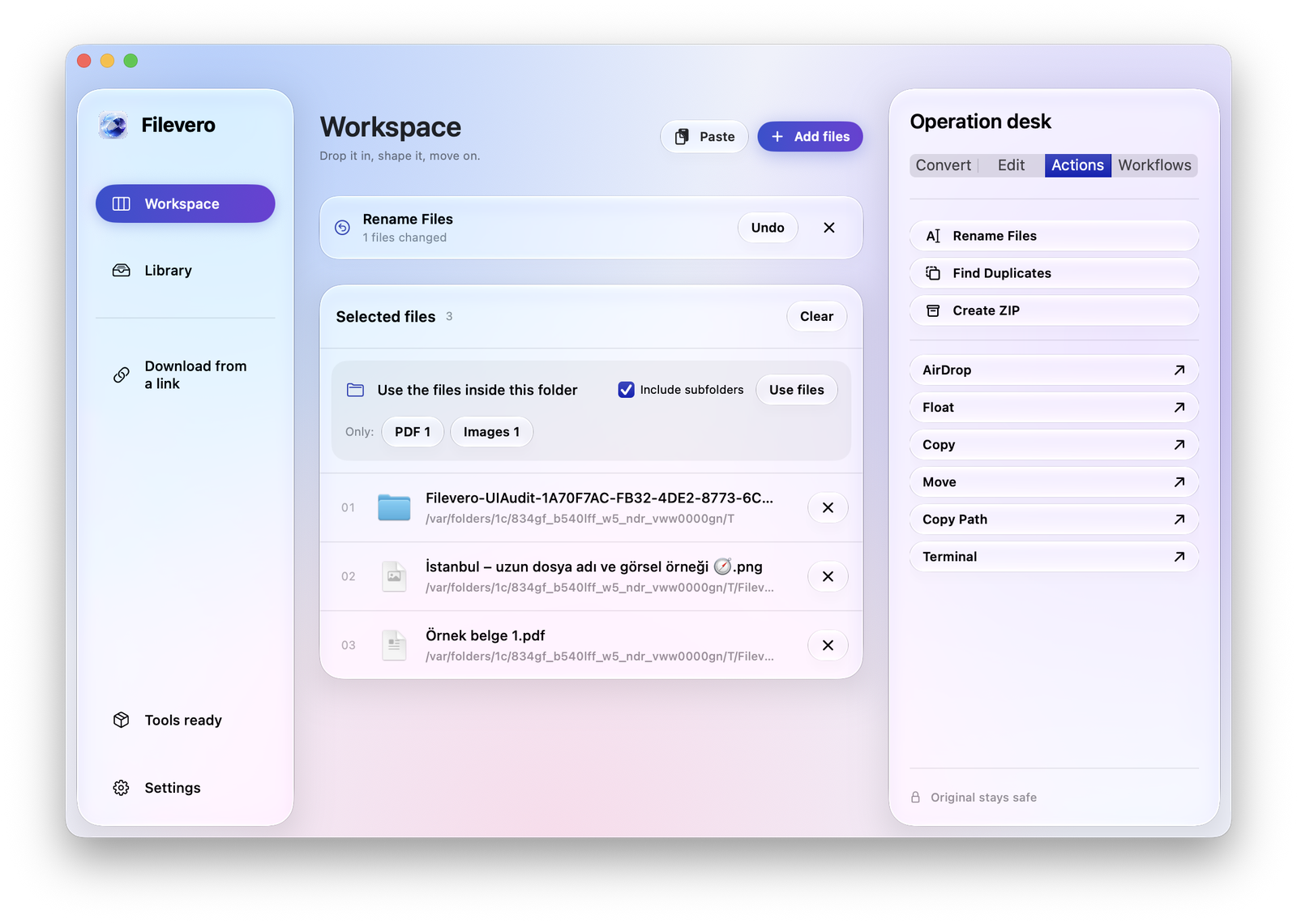
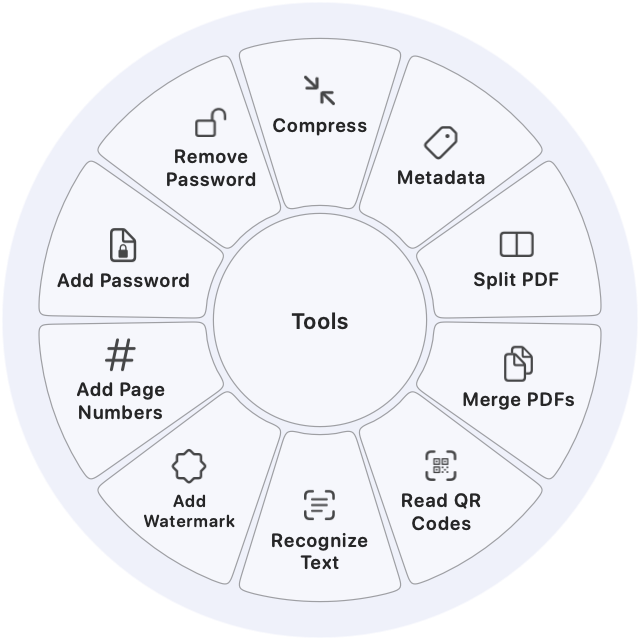
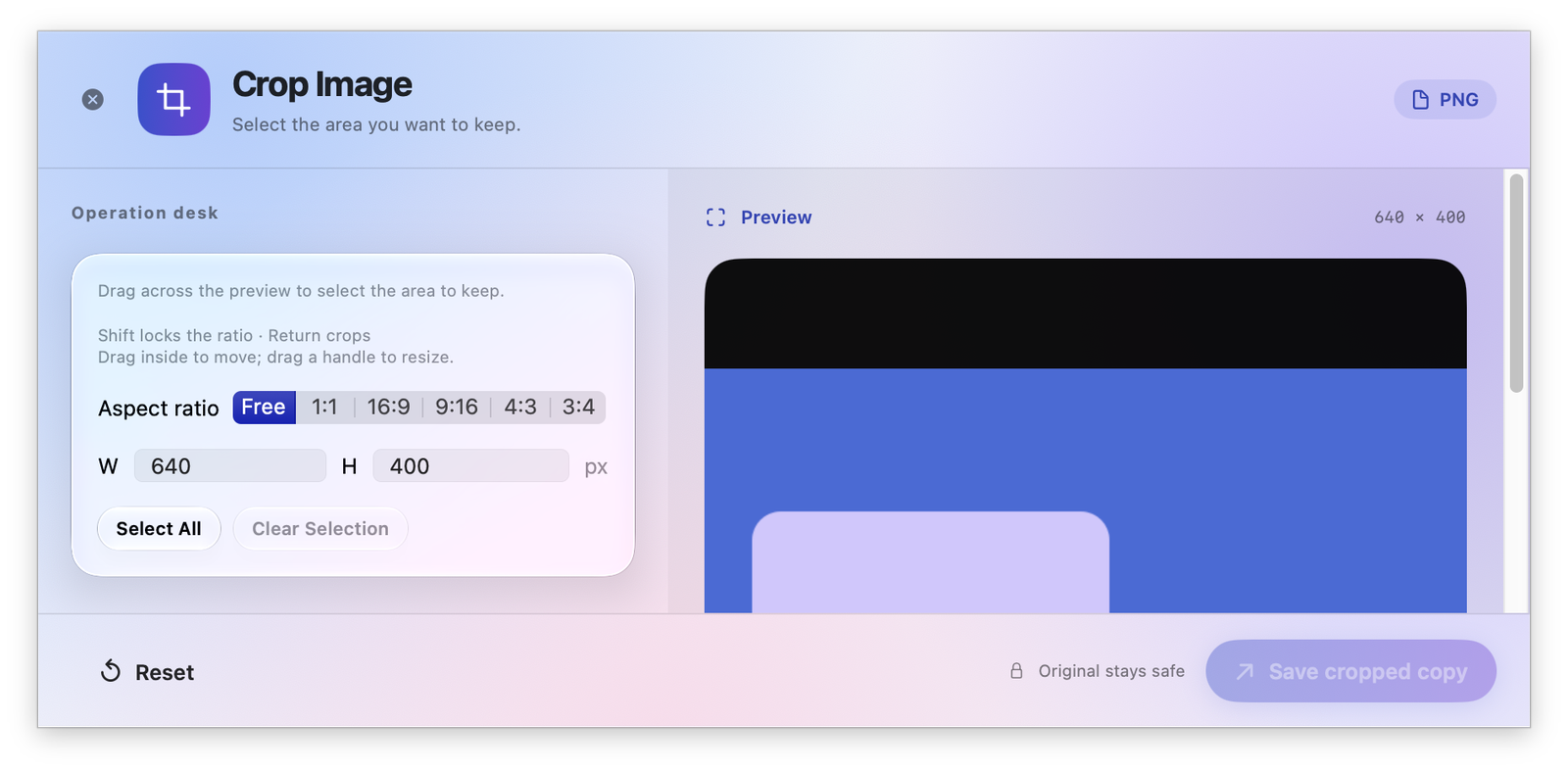
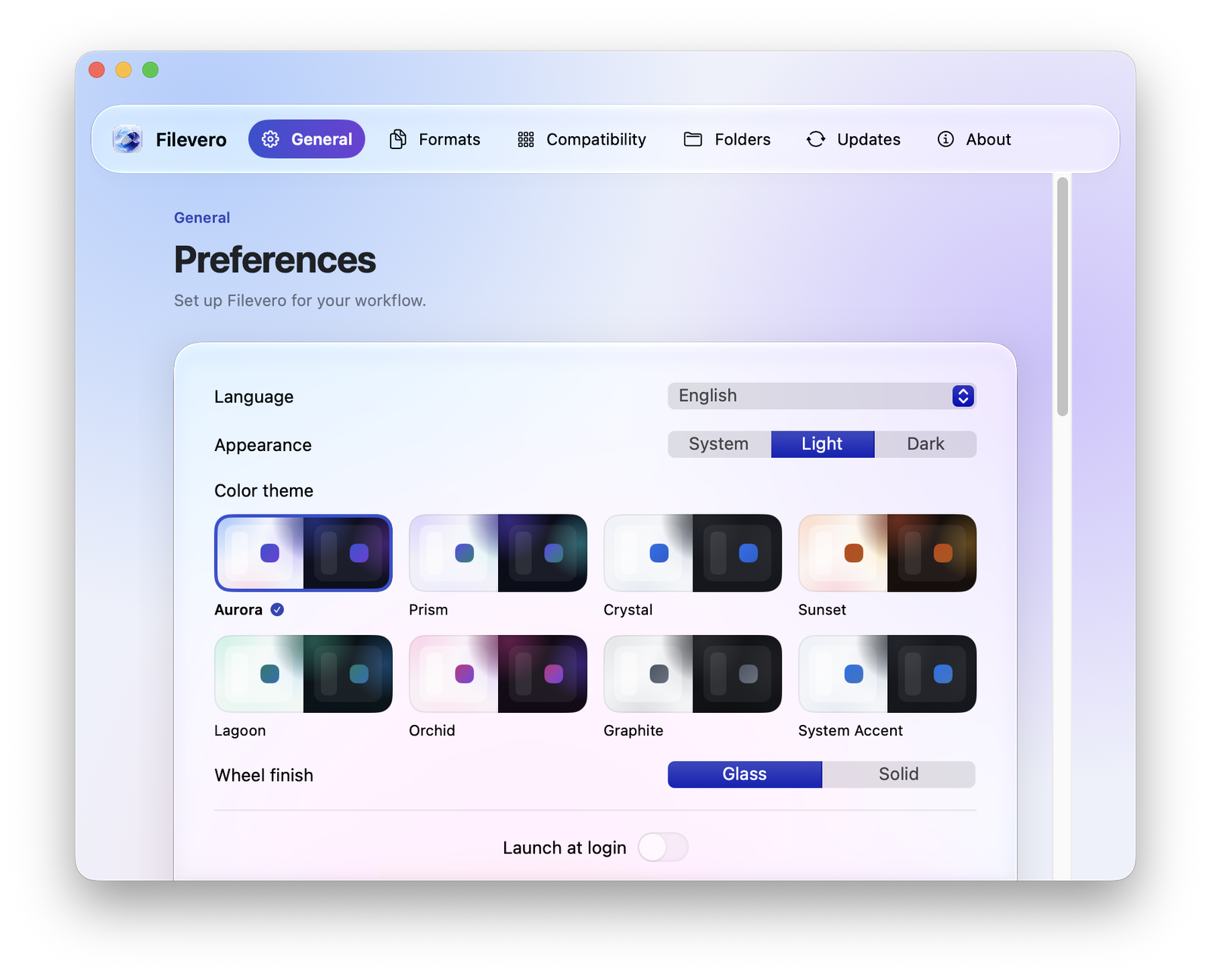
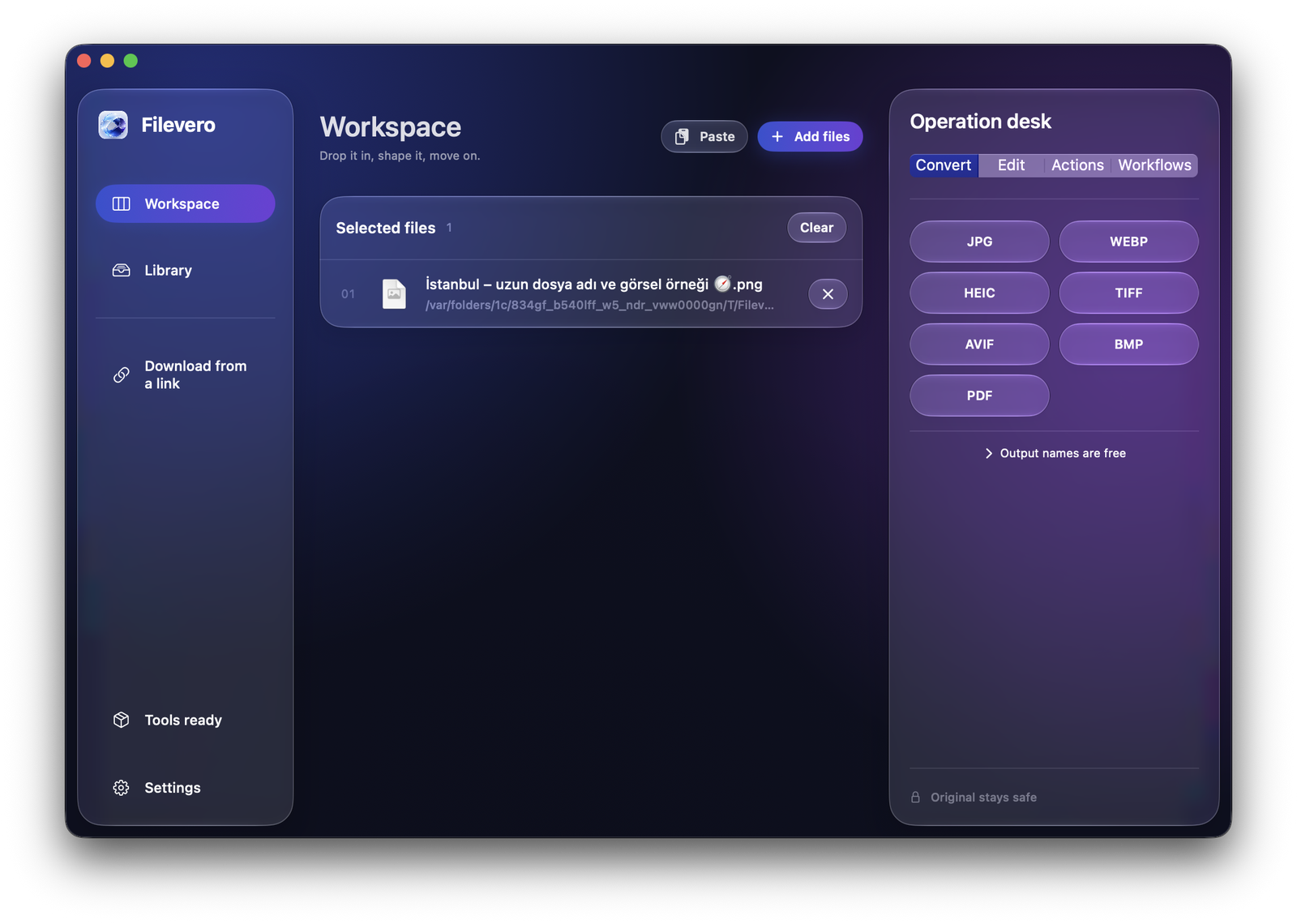
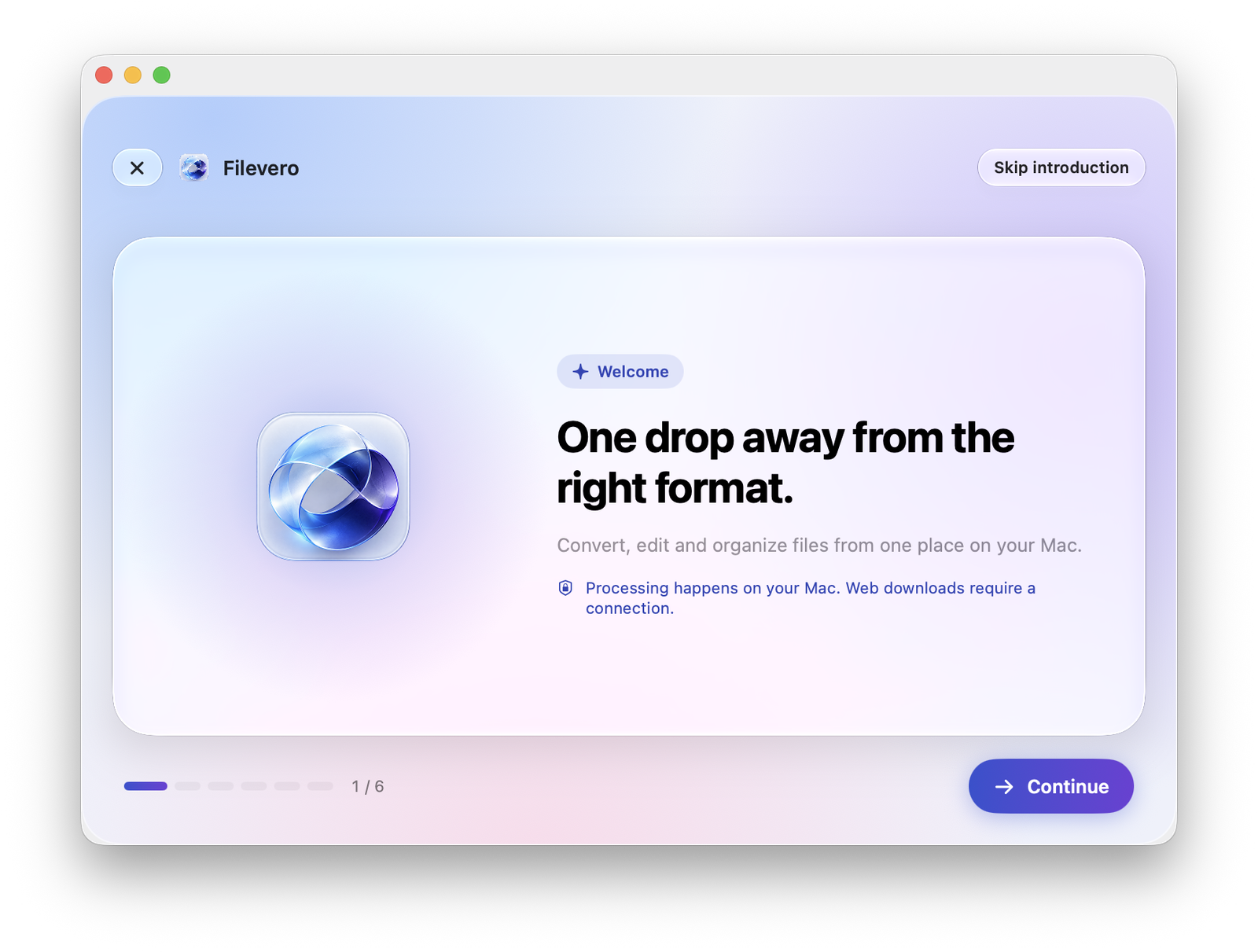
Click any screenshot to see it in full.
Conversion and editing run locally. Web downloads contact the chosen site. No analytics, cloud account, browser-cookie import or subscription is built in. Clipboard history is off by default and stays in a private folder on your computer. Watched folders are off until you add one, and their results stay next to the files.
Updates are verified before they replace anything: macOS checks its signed feed and archive, Windows and Linux their archive or AppImage signature and version. All three apps check GitHub Releases, then install a verified update and restart themselves.
Complex document conversions are best-effort. Haptic feedback depends on hardware. macOS and Windows may show first-run warnings for builds without an OS-trusted publisher signature. On Wayland, desktop-wide drag wheels and background clipboard history need the optional GNOME extension or KDE Plasma’s permissions. We do not ask you to disable system security.
Filevero is an original application inspired by Tangerine’s delightful drag-and-wheel interaction, featuring refined workflows and extensive capabilities. It is not affiliated with or endorsed by Tangerine or LEAP STUDIO.
Tangerine ↗